How to investigate on Linux

How to investigate on Linux

Some commands

Logs from SSH and others

1
sudo cat /var/log/auth.log | grep failure
1
sudo cat /var/log/auth.log | grep sshd

SSH keys directory

1
sudo ls -la .ssh/

~/.ssh/authorized_keys

Check the bash history

1
history

Check the CPU usage

1
htop

Diplay current connections

1
last -a | grep -i still
1
who
1
w

Networking connections

1
netstat -tnpa

List last files modified

1
sudo find /tmp -newermt "1 day ago" -ls

Check the crontab

1
crontab -l

Check the strings in the script

1
strings x | more
How to install and configure Samba on ubuntu with Kerberos in Windows Domain

How to install and configure Samba on ubuntu with Kerberos in Windows Domain

Installing Dependencies

We start by making sure that we have the latest packages by updating the system using apt-get:

1
sudo apt-get update
1
sudo apt-get upgrade

Now that we know that we are running an updated system we can install all the dependent packages that are needed by Samba:

1
sudo apt install samba krb5-config krb5-user winbind libpam-winbind libnss-winbind

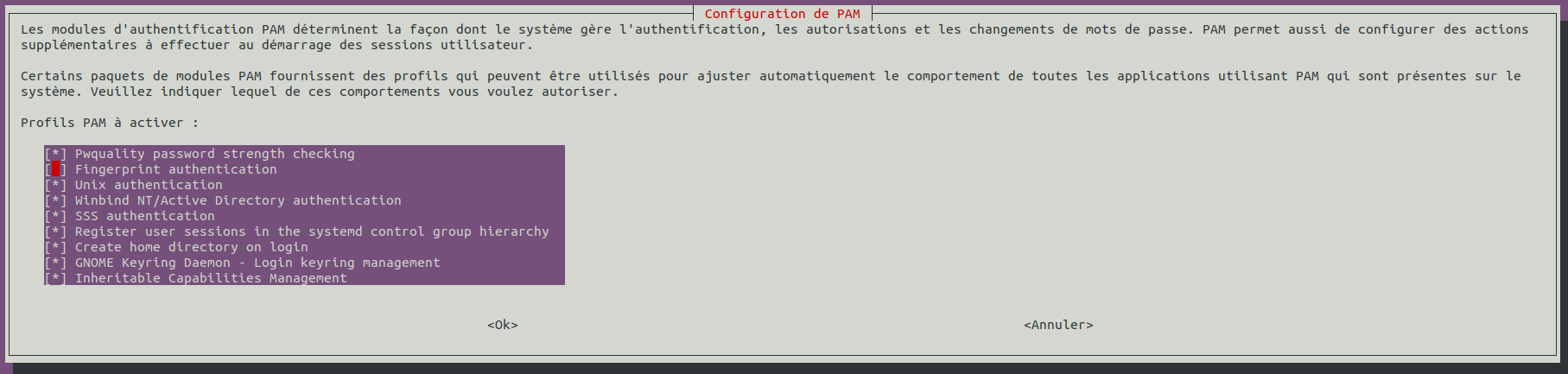
Configure pam-auth-update

1
sudo pam-auth-update

You must have this same parameters:

Check the box “Create home directory on login”

Install sssd

SSSD provides a set of daemons to manage access to remote directories and authentication mechanisms such as LDAP or Kerberos. It provides an NSS and PAM interface toward the system and a pluggable backend system to connect to multiple different account sources.

1
sudo apt install sssd-ad sssd-tools realmd adcli

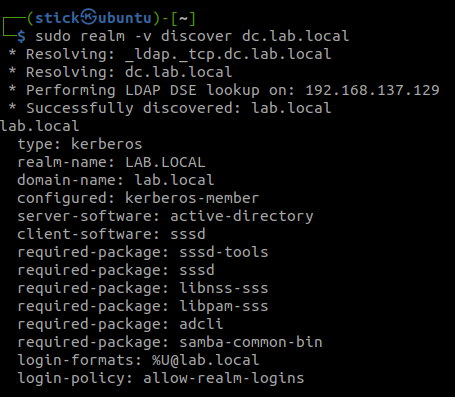
Discover the domain with realm

1
sudo realm -v discover dc.lab.local

Join the domain with an admin account from your Active Directory

1
sudo realm join -v dc.lab.local -U bud

Configure the krb5.conf file

1
2
3
4
5
6
7
8
9
10
11
12
13
14
15
16
17
18
19
20
21
22
23
24
[libdefaults]
default_realm = LAB.LOCAL
dns_lookup_realm = true
dns_lookup_kdc = true

# The following krb5.conf variables are only for MIT Kerberos.
kdc_timesync = 1
ccache_type = 4
forwardable = true
proxiable = true

# The following libdefaults parameters are only for Heimdal Kerberos.
fcc-mit-ticketflags = true
udp_preference_limit = 0

[realms]
LAB.LOCAL = {
kdc = DC.LAB.LOCAL
admin_server = DC.LAB.LOCAL
}

[domain_realm]
.lab.local = LAB.LOCAL
lab.local = LAB.LOCAL

Verify the domain membership

1
id bud

NTP with domain controller for Kerberos authentication

1
sudo apt install ntpdate
1
sudo ntpdate dc.lab.local

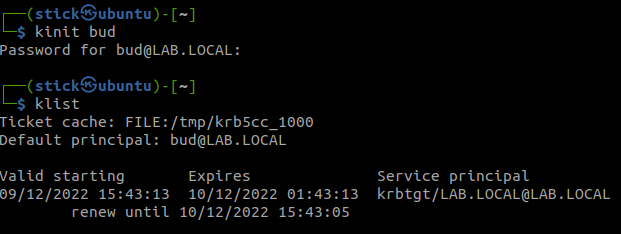
Check the correct functioning of Kerberos

1
kinit bud
1
klist

Create the share directory

1
sudo mkdir /srv/share

Edit the smb.conf file

1
sudo vim /etc/samba/smb.conf
1
2
3
4
5
6
7
8
9
10
11
12
13
14
15
16
17
18
19
20
21
22
23
24
25
26
27
28
29
30
31
32
33
34
35
36
37
38
39
40
41
42
43
44
45
46
47
48
49
50
51
52
53
54
55
56
57
58
59
60
61
62
63
64
65
66
[global]

## Browsing/Identification ###

# Change this to the workgroup/NT-domain name your Samba server will part of
workgroup = LAB
security = ADS
realm = lab.local
kerberos method = secrets and keytab
passdb backend = tdbsam
encrypt passwords = yes

# server string is the equivalent of the NT Description field
server string = %h server (Samba, Ubuntu)

#### Debugging/Accounting ####

# This tells Samba to use a separate log file for each machine
# that connects
log file = /var/log/samba/log.%m
log level = 3
# Cap the size of the individual log files (in KiB).
max log size = 1000

# We want Samba to only log to /var/log/samba/log.{smbd,nmbd}.
# Append syslog@1 if you want important messages to be sent to syslog too.
logging = file

# Do something sensible when Samba crashes: mail the admin a backtrace
panic action = /usr/share/samba/panic-action %d


####### Authentication #######

server role = member server

obey pam restrictions = yes

unix password sync = yes

passwd program = /usr/bin/passwd %u
passwd chat = *Enter\snew\s*\spassword:* %n\n *Retype\snew\s*\spassword:* %n\n *password\supdated\ssuccessfully* .

pam password change = yes

map to guest = bad user

########## Domains ###########

idmap config LAB.LOCAL : backend = sss
idmap config LAB.LOCAL : range = 200000-2147483647
idmap config * : backend = tdb
idmap config * : range = 100000-199999

usershare allow guests = yes

#======================= Share Definitions =======================

[share]
comment = Mon partage
path = /srv/share
public = no
writable = yes
guest ok = no
create mask = 660
directory mask = 770

Use this command to initialize winbind

1
sudo net ads join -U bud

Check the functioning of the services and restart

1
2
sudo systemctl status winbind smbd nmbd sssd
sudo systemctl restart winbind smbd nmbd sssd

Configure the share’s permissions

We want that other or everyone in Windows have no access to the share.

1
sudo setfacl -m other:--- /srv/share/

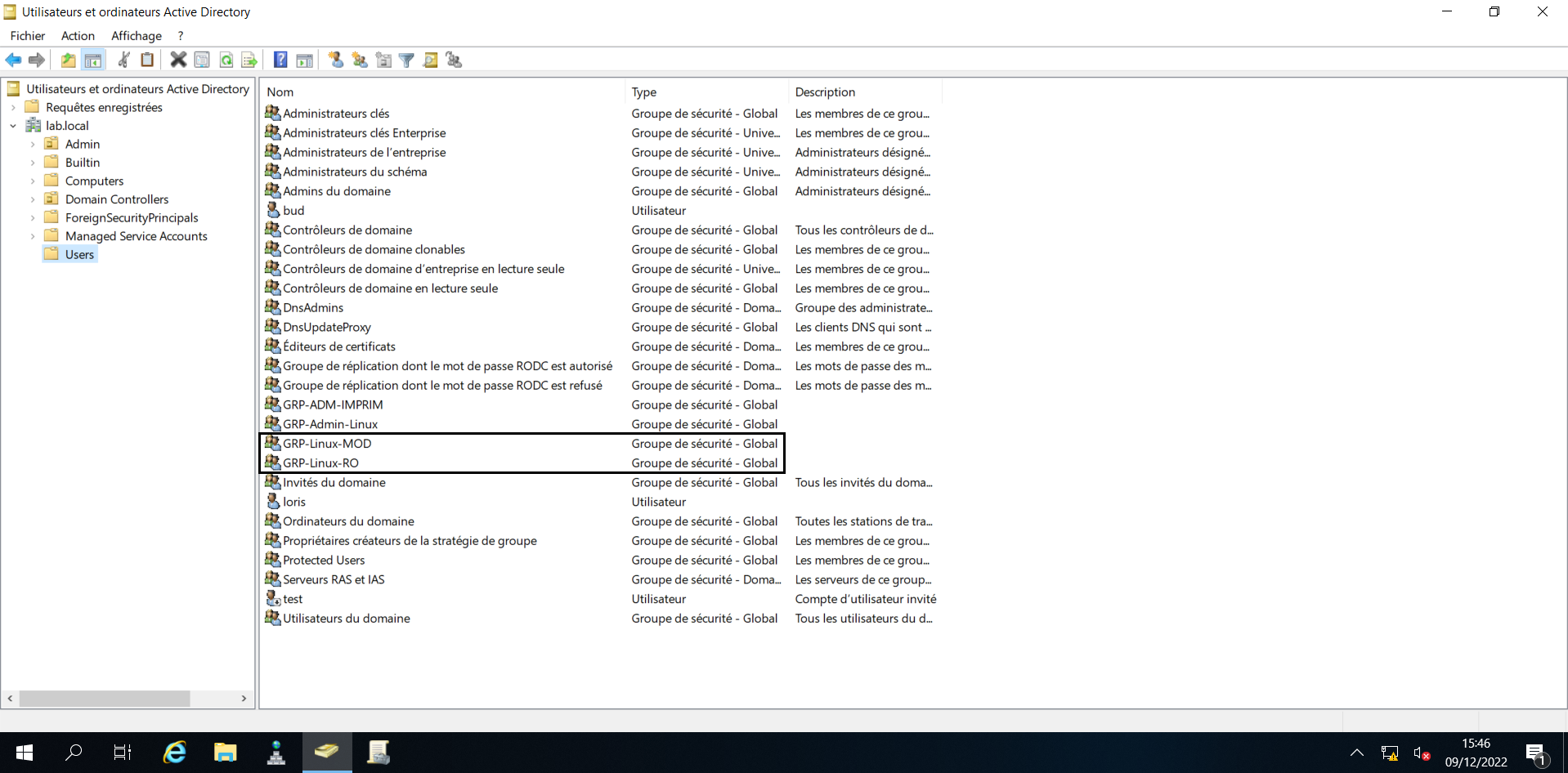
We want two groups :

  • The first can modify the documents
    1
    sudo setfacl -m g:GRP-Linux-MOD:rwx /srv/share/
  • The second in read only
    1
    sudo setfacl -m g:GRP-Linux-RO:rx /srv/share/

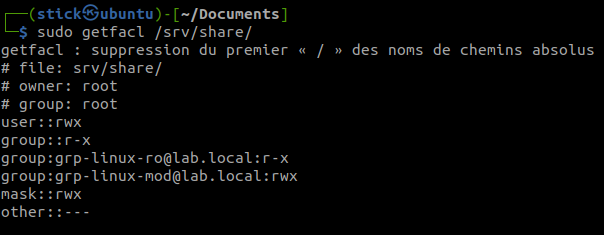
    Check the result of the ACL on the share

    1
    sudo getfacl /srv/share/

Restart samba for the modification

1
sudo systemctl restart smbd

Now your share is good and you can access it with Kerberos from a domain computer with an account link with the active directory groups GRP-Linux-RO or GRP-Linux-MOD.

How to install Metasploit Framework on Debian

How to install Metasploit Framework on Debian

Metasploit Review

The Metasploit Project is a computer security project that provides information about security vulnerabilities and aids in penetration testing and IDS signature development.

It’s best-known sub-project is the open source Metasploit Framework, a tool for developing and executing exploit code against a remote target machine. Other important sub-projects include the Opcode Database, shellcode archive and related research.

The Metasploit Project is well known for it’s anti-forensic and evasion tools, some of which are built into the Metasploit Framework.

Installing Dependencies

We start by making sure that we have the latest packages by updating the system using apt-get:

1
sudo apt-get update
1
sudo apt-get upgrade

Now that we know that we are running an updated system we can install all the dependent packages that are needed by Metasploit Framework:

1
sudo apt-get install build-essential libreadline-dev libssl-dev libpq5 libpq-dev libreadline5 libsqlite3-dev libpcap-dev git-core autoconf postgresql pgadmin3 curl zlib1g-dev libxml2-dev libxslt1-dev libyaml-dev curl zlib1g-dev

Install the necessary packages

Installing the Metasploit Framework on Linux

  1. Open terminal (keyboard shortcut: Ctrl + Alt + T).

  2. Enter the following command to add the build repository and install the Metasploit Framework package:

    1
    sudo curl https://raw.githubusercontent.com/rapid7/metasploit-omnibus/master/config/templates/metasploit-framework-wrappers/msfupdate.erb > msfinstall && chmod 755 msfinstall && ./msfinstall

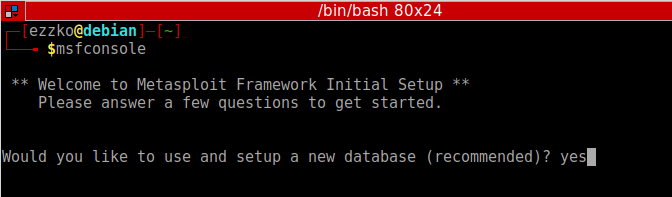
After the installation completes, open a terminal window and type the following to start msfconsole:

1
msfconsole

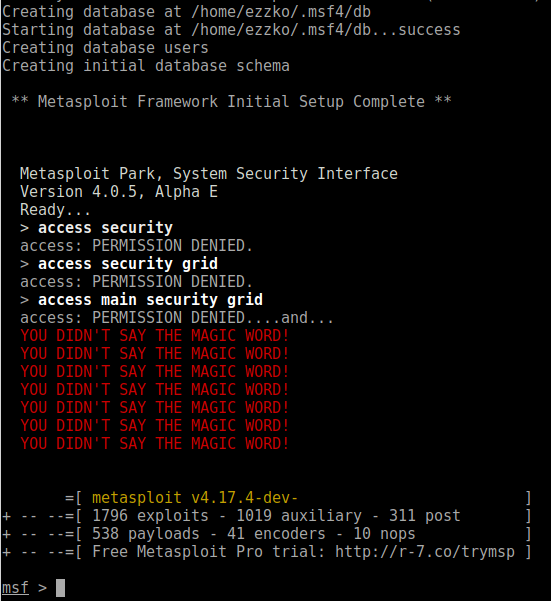
The prompt asks you if you want to use and set up a new database. Type y or yes to run the initial configuration script to create the initial database.

If all goes well, the console starts and displays the following:

To check to see if the database was set up, run the following command:

1
db_status

If the Metasploit Framework successfully connected to the database, the following status displays:

1
[*] postgresql connected to msf

Loading External Modules

If you’re in the business of writing or collecting Metasploit modules that aren’t part of the standard distribution, then you need a convenient way to load those modules in Metasploit. Never fear, it’s pretty easy, using Metasploit’s default local module search path, $HOME/.msf4/modules, and there are just a couple caveats:

Mirror the “real” Metasploit module paths

You must first set up a directory structure that fits with Metasploit’s expectations of path names. What this typically means is that you should first create an “exploits” directory structure, like so:

1
mkdir -p $HOME/.msf4/modules/exploits

If you are using auxiliary or post modules, or are writing payloads you’ll want to mkdir those as well.

Create an appropriate category

Modules are sorted by (somewhat arbitrary) categories. These can be anything you like; I usually use test or private, but if you are developing a module with an eye toward providing it to the main Metasploit distribution, you will want to mirror the real module path. For example:

1
mkdir -p $HOME/.msf4/modules/exploits/windows/fileformat

… if you are developing a file format exploit for Windows.

Test it all out

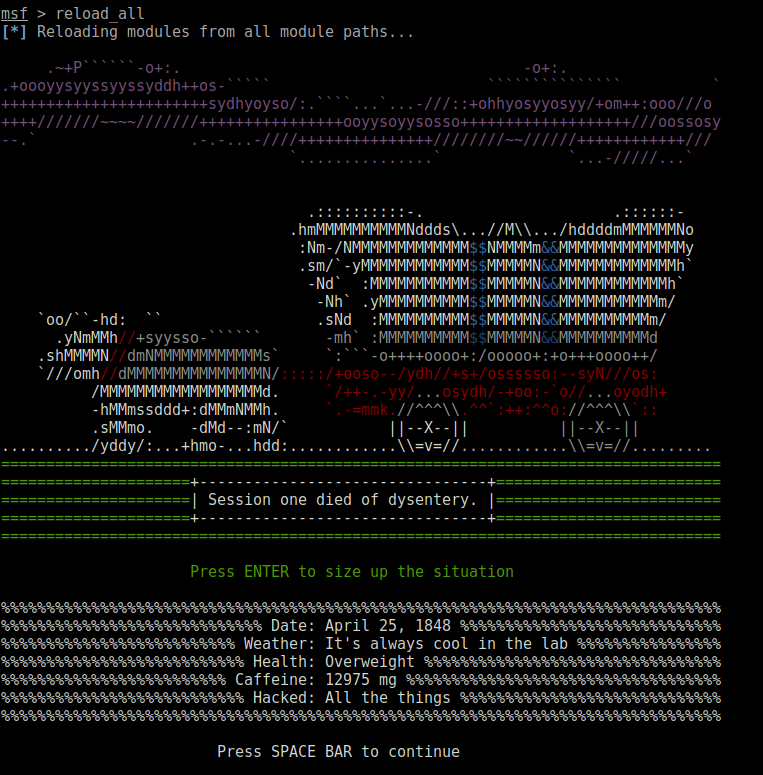
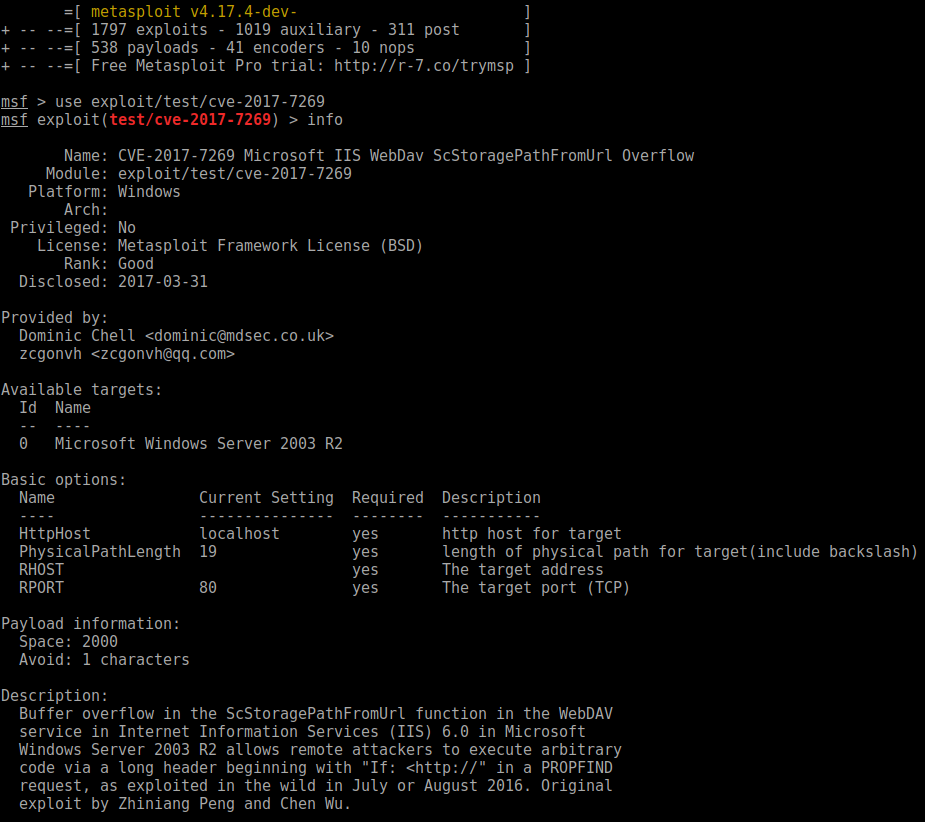
If you already have msfconsole running, use a reload_all command to pick up your new modules. If not, just start msfconsole and they’ll be picked up automatically. If you’d like to test with something generic, I have found a module on his github: https://github.com/zcgonvh/cve-2017-7269/blob/master/cve-2017-7269.rb, so let’s give it a shot:

1
2
3
4
5
6
7
8
wget https://raw.githubusercontent.com/zcgonvh/cve-2017-7269/master/cve-2017-7269.rb
Taille : 4527 (4,4K) [text/plain]
Sauvegarde en : « cve-2017-7269.rb »

cve-2017-7269.rb 100%[=====================================================================================================================>] 4,42K --.-KB/s in 0s

2018-08-01 13:02:00 (91,7 MB/s) — « cve-2017-7269.rb » sauvegardé [4527/4527]

Then, in my msfconsole window:

How to use NordVPN on Linux

How to use NordVPN on Linux

NordVPN Review

Ranks #2nd out of 35 VPNs

  • Based in Panama
  • Speed test: 74 Mbps out of 100 Mbps
  • Usability: 5/5
  • Logging policy: No logs are being kept.
  • Netflix: Yes.
  • Torrenting: Yes.
  • Six simultaneous connections
  • Servers in 70 countries
  • Choice of IKEv2, OpenVPN, PPTP, L2TP, and IPSec VPN protocols
  • Double VPN
  • Tor over VPN
  • CyberSec anti-malwate protection
  • No IP or DNS Leaks Found
  • Cost: $3.29/mo and up on NordVPN.com

Install the necessary packages

How to connect to OpenVPN via shell:

  1. Open terminal (keyboard shortcut: Ctrl + Alt + T).

  2. Install OpenVPN client by entering:

    1
    sudo apt-get install openvpn
  3. Navigate to OpenVPN configuration directory with command:

    1
    cd /etc/openvpn
  4. Download OpenVPN configuration files with command:

    1
    sudo wget https://downloads.nordcdn.com/configs/archives/servers/ovpn.zip
  • In case you will get ERROR: The certificate of nordvpn.com’ is not trusted., please install ca-certificates` package with command:
    1
    sudo apt-get install ca-certificates
  1. If you do not have unzip package installed, download it by typing in:
    1
    sudo apt-get install unzip
  2. Extract ovpn.zip with command:
    1
    sudo unzip ovpn.zip
  3. Remove files which will be no longer used:
    1
    sudo rm ovpn.zip
  4. Depending on the connection protocol you want to be using(TCP or UDP), UDP is recommended, you can do either one of these commands:
    1
    cd ovpn_udp
    or
    1
    cd ovpn_tcp

9.Now, to see the list of all available servers, simply enter the

1
ls -al

command and it will print full configuration file list.
10. Choose a server which you would like to connect to. This link could help you: NordVPN servers recommended
11. Start OpenVPN with a chosen configuration by entering:

1
sudo openvpn [file name]

For example:

1
sudo openvpn us842.nordvpn.com.udp.ovpn
  1. OpenVPN will ask you for credentials, so simply enter those in with your NordVPN account credentials.
  2. You have successfully connected to VPN. To disconnect from the OpenVPN connection simply open terminal and press Ctrl + C on your keyboard.

You need to set client_id and slot_id to show this AD unit. Please set it in _config.yml.